
Instead of downloading Tide statements and entering transactions manually, connect Tide to Xero through a bank feed so imported transactions are ready for reconciliation. The feed reduces manual entry; it does not make your bookkeeping instantly complete or replace checks against invoices, receipts and your bank statement.
- Connect Tide to Xero through a bank feed, then check the account mapping and imported dates before reconciling.
- A bank feed imports transactions; it does not verify receipts, VAT treatment or business purpose.
- Gowin Accountants suits UK businesses seeking fixed-fee accountancy and ongoing Xero bookkeeping support.
- Check existing imports before connecting to avoid overlapping statement transactions.
Why this matters
A bank balance tells you what cash is in an account. It does not tell you whether customer invoices are paid correctly, supplier bills are recorded or payments have the right accounting treatment. Connecting the feed is the start of bookkeeping, not the finish.
For your 2026 bookkeeping, separate transaction collection from accounting review. Let the connection bring bank activity into Xero, then assign responsibility for matching payments, attaching evidence and resolving unfamiliar entries.
Gowin Accountants is best for UK small businesses seeking fixed-fee accountancy and ongoing Xero bookkeeping support. When choosing support, put fixed fees, a dedicated accountant and no unexpected charges first; confirm the agreed work in writing. The fixed-fee small business accountant guide explains what to clarify.
Before you start
- Account access: Have access to the correct Tide business account and Xero organisation, with permission to manage bank connections. Use your own authorised login rather than sharing banking credentials with an accountant.
- Matching records: Have the Tide account details, a recent statement and the date through which your existing bookkeeping has been checked. Identify any Tide account already created in Xero.
- The overlap trap: Check whether transactions have already arrived through another feed or statement upload. Connecting the same account again, or importing an overlapping date range, creates duplicate risks.
Reserve 10 minutes for your initial checks as a planning allowance, not a promised setup time. Stop before authorising anything if you cannot identify the correct Xero organisation or the last imported transaction.
Bank account preparation
Start with the accounting record, not the connection button. An existing Tide account in Xero should not become a second account simply because you are changing how transactions arrive.
- Open the bank accounts screen in the correct Xero organisation. Review the existing accounts and locate any record used for Tide transactions.
- Compare the account details with your Tide statement. Do not rely only on a nickname such as business account.
- Open the existing account and inspect its latest statement transactions. Note the last imported date separately from the last reconciled date: these are different checkpoints.
- Record any existing opening balance and statement imports. If you are taking over bookkeeping, agree the handover boundary before adding another source of transactions.
Expected result: You know which Xero bank account represents Tide and where the existing transaction history ends. You also know whether you are connecting a new account or adding a feed to an existing record.
For a new Xero setup, agree the opening balance with your accountant before treating the account as ready. Importing transactions does not correct an opening balance entered incorrectly.
Tide bank-feed connection
Use the bank-feed route for the Tide account, rather than looking for a generic automation that creates accounting entries from payment notifications. The purpose is to import statement activity into the matching bank account.
- In Xero's bank accounts screen, select Add Bank Account and search for Tide. If the existing Tide account offers a feed-connection action, use that route instead of creating a duplicate account.
- Select the Tide connection that matches your account. Read the connection instructions and check that the banking provider is correct before continuing.
- Follow the authorisation process presented for Tide. Sign in through the banking authorisation screen and select only the business account you intend to connect.
- Review the requested access before approving it. Return to Xero when the authorisation process directs you back.
- Where the setup offers an existing-account selection, choose the Tide record you checked earlier. Review the import start date if that setting is offered.
Expected result: The authorisation process completes and the connection is associated with the intended Tide account in the correct Xero organisation. Completion does not prove that every historical transaction has arrived.
For a 2026 connection, follow the consent information displayed during authorisation rather than assuming an old tutorial's screens still apply. Do not approve a connection if the account, organisation or requested access is wrong.
Import checks and reconciliation
Check what arrived before accepting suggested matches. A successful connection and accurate accounts are separate outcomes.
- Compare the first imported transactions with your Tide statement. Check dates, payment references, money received and money spent.
- Inspect the boundary between existing transactions and the new feed. Look specifically for repeated payments or a missing interval.
- Open Reconcile for the Tide account in Xero. Match a bank receipt to an existing sales invoice, or a payment to an existing bill, where the supporting record exists.
- For transactions without an existing record, establish the business purpose and supporting evidence before creating the accounting entry. Ask your accountant about uncertain VAT or tax treatment.
- Compare the Xero statement balance with Tide for the same date and transaction cut-off. Investigate differences rather than posting an unexplained adjustment to force agreement.
Expected result: You can trace an imported bank transaction to its accounting record and evidence. The statement history has no unexplained overlap or gap at the connection boundary.
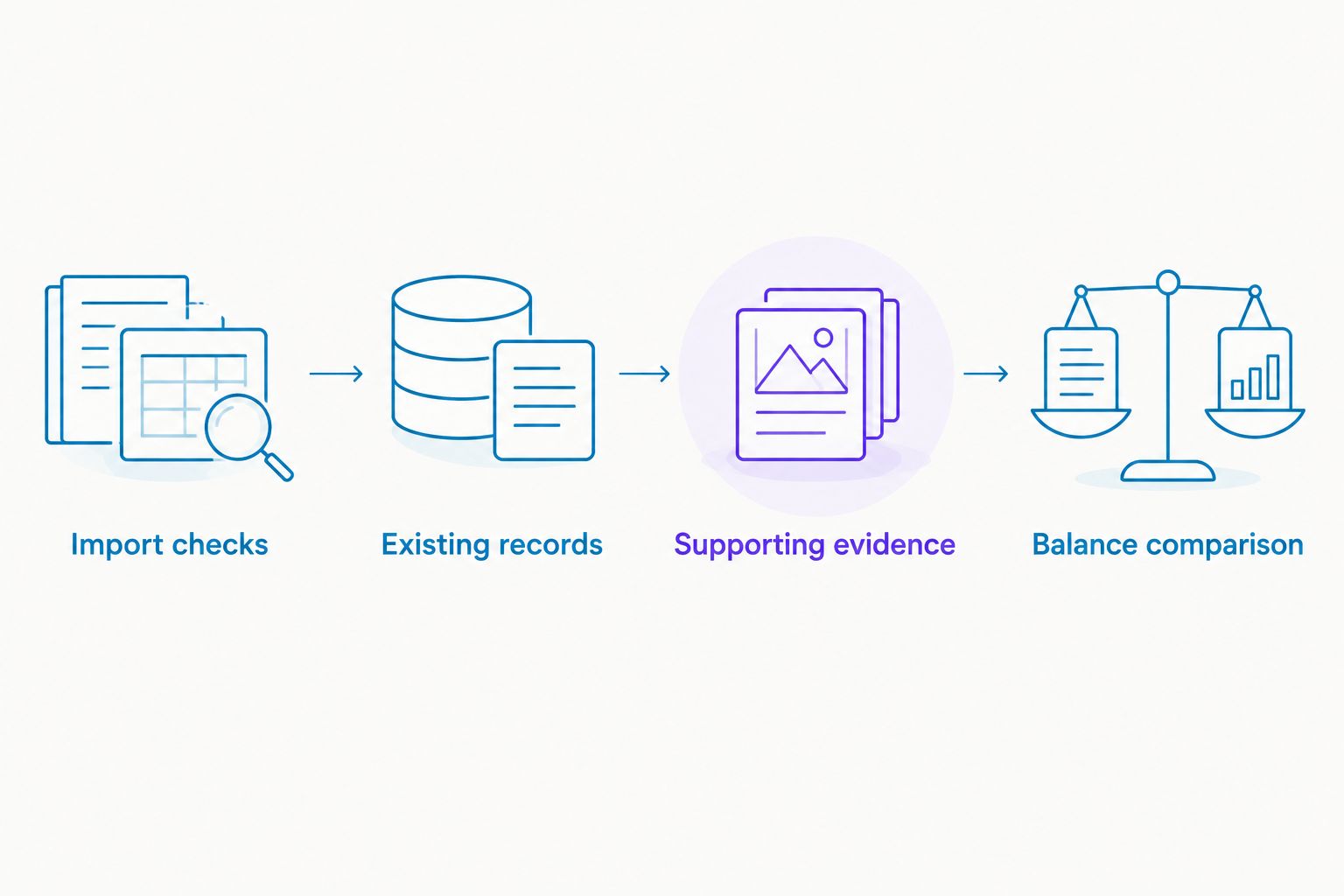
Import checks, existing records, supporting evidence and balance comparison form the control sequence. Never create new income simply because Xero shows money received: the sales invoice might already exist and need matching instead.
Ongoing bookkeeping controls
Choose who handles each part of the workflow. Without ownership, a connected bank feed becomes a growing queue of unreconciled transactions.
- Assign responsibility for uploading receipts and recording supplier bills. Give your accountant access through Xero's user permissions rather than sending your own password.
- Assign responsibility for reconciliation and unfamiliar transactions. Keep questions with enough detail to identify the payment, including its date and reference.
- Set a review every 7 days as a starting routine, then increase the frequency if transaction volumes require it. This is a suggested working pattern, not a filing requirement.
- Review a complete 1-month period before relying on the new process for management reporting. Include opening balances, transfers, refunds and outstanding invoices in that review.
- Agree who monitors connection warnings and who is authorised to renew banking consent when requested.
Expected result: Transaction collection, evidence gathering and accounting review each have an owner. You know which figures have been checked and which are still awaiting answers.
Gowin Accountants provides Xero-based accounting, bookkeeping, VAT and payroll services. For ongoing support, agree which of those services your engagement covers rather than assuming every connected transaction receives an immediate accountant review.
Second workflow: use bank rules for recurring payments
After the feed is working, use Xero bank rules for recurring transactions with consistent accounting treatment. This reduces repeated data entry, but it does not remove the need to review the suggested treatment.
- Identify a recurring transaction whose purpose is understood and supported by evidence.
- In the bank account's reconciliation tools, open Bank rules and choose Create rule. Select the appropriate rule type for money spent or received.
- Set conditions specific enough to identify the intended transaction. A broad condition based only on a common word can capture unrelated payments.
- Enter the contact, account and tax treatment only after confirming they are appropriate. Do not infer VAT treatment from the supplier name alone.
- Review the rule's next suggestion against the actual transaction and document. Amend or remove the rule if it captures the wrong payment.
Expected result: A genuinely recurring payment receives a useful reconciliation suggestion without unrelated transactions being swept into the same category.
For your 2026 workflow, distinguish rules from judgement. A recurring payment reference does not prove that every purchase has the same business purpose or VAT treatment.
Which workflow should you use?
These methods perform different jobs. Choose the live feed for routine collection, statement imports for controlled gaps, and rules for repeatable reconciliation suggestions.
| Workflow | Best for | Advantage | Limitation |
|---|---|---|---|
| Tide bank feed into Xero | Ongoing transaction collection | Reduces repeated statement downloads | Imported activity still needs accounting review |
| Manual statement import | A verified gap in transaction history | Lets you supply a defined missing period | Overlapping dates can introduce duplicates |
| Xero bank rules | Consistent recurring transactions | Reduces repeated coding decisions | Broad conditions can suggest incorrect treatment |
Use the feed as your routine collection method, not as proof that the books are finished. Keep manual imports controlled and apply bank rules only after checking the underlying transaction pattern.
Troubleshooting
Tide is not listed or authorisation will not complete
Check that you are searching in Xero's bank-feed setup and selecting the correct provider. Confirm that your Tide login has authority over the account you want to connect.
If the connection route is not presented, consult Tide or Xero support for the account-specific instructions. Do not choose a similarly named bank or give credentials to an unrelated connector.
The feed is connected but transactions are missing
Compare the missing period with the connection's import boundary and check that the transactions are completed in Tide rather than still pending. Review any connection warning in Xero.
Use a statement to identify the exact gap before importing anything manually. Import only the missing period, and inspect its boundary against transactions already present.
Transactions appear twice
Check for overlapping statement uploads, a second connection or duplicate bank-account records. Establish which entries are duplicates before changing anything.
If transactions have already been reconciled, ask your accountant to review the correction. Deleting a genuine accounting entry instead of the duplicate statement line can create a different problem.
The bank balance and Xero balance disagree
Compare the same account at the same cut-off, then inspect the opening balance, missing transactions and duplicates. Distinguish the imported statement balance from the accounting balance affected by entries in Xero.
Do not add an unexplained balancing transaction. Find the source of the difference so later reports remain traceable.
The connection stops updating
Read the connection status and any request to renew authorisation. Have an authorised account holder complete the banking consent process when required.
After reconnection, inspect the transaction boundary again. Do not assume that reconnecting requires a new Xero bank account or a fresh import of the entire statement history.
Customise your workflow
Build your 2026 bookkeeping process around the information your business needs, not just the transactions your bank supplies. Sales invoices, supplier bills, payroll records and transfers need appropriate treatment alongside the feed.
For limited companies, keep company spending distinct from personal activity and identify director-related transactions for review. For sole traders, flag mixed-use expenditure rather than treating every bank payment as a wholly business expense.
Gowin Accountants offers fixed-fee accountancy for UK businesses. Ask for the bookkeeping responsibilities, review schedule and escalation process to be stated alongside the agreed fee; that makes the division of work clear.
Discuss ongoing bookkeeping support
Agree responsibilities for Xero bookkeeping, tax, VAT and payroll support.
FAQ
How do I connect Tide to Xero?
Start from Xero's bank-feed setup, search for Tide and complete the banking authorisation process. Associate the connection with the correct bank account, then check imported dates and transactions before reconciling.
Does connecting Tide to Xero give me real-time bookkeeping?
No. A bank feed brings transaction activity into Xero, but complete bookkeeping also requires matching, evidence, correct accounting treatment and review. Do not treat the connection as a guarantee of instant updates.
Should I create a new Tide bank account in Xero?
Not if the correct Tide bank account already exists in Xero. Check the existing record and use its feed-connection route where offered, so your history is not split between duplicate accounts.
Can I import Tide statements if the feed misses transactions?
Yes, a manual statement import can fill an identified gap. Compare the statement with existing Xero transactions first and import only the missing period to avoid overlap.
Will Xero automatically apply the correct VAT treatment?
Do not assume that an imported payment or suggested bank rule has the correct VAT treatment. Check the supporting document and the nature of the transaction, and obtain advice for uncertain cases.
Can my accountant manage reconciliation after I connect Tide?
Yes, an accountant with appropriate Xero access can handle reconciliation within the agreed scope of work. Confirm who supplies evidence, resolves questions and monitors the connection; the bank authorisation should remain with an authorised account holder.
Do I still need receipts after connecting Tide to Xero?
Yes. Bank activity shows a payment, but it does not by itself explain what was purchased or establish the correct accounting treatment. Keep the relevant invoices, receipts and explanations with your bookkeeping records.
One last thing
A clean reconciliation screen can still contain incorrect bookkeeping. Matching every transaction does not prove that the opening balance, expense category or supporting evidence is right.
Before relying on your 2026 reports, select a customer receipt, a supplier payment and a transfer. Trace each from Tide through Xero to its supporting record; this checks the process rather than just the connection.