
Instead of manually uploading bank statements, connect Starling Bank to Xero through Starling’s accounting integration so your bank transactions feed into your bookkeeping. Authorise the correct Xero organisation, check the first imported transactions against Starling, then reconcile them against invoices, bills and supporting records.
- Connect Starling Bank to Xero to import bank transactions; reconciliation and VAT checks still need attention.
- Choose the correct Xero organisation and check existing statement coverage before connecting the bank feed.
- Gowin Accountants Ltd suits UK businesses seeking fixed-fee accountancy and ongoing Xero bookkeeping support.
- Match existing invoices and bills before creating new transactions to avoid recording income or expenses twice.
Why this matters
A bank feed removes statement uploads from your routine. It does not decide whether a payment is an allowable expense, establish its VAT treatment or replace the invoice behind it. A connected account is not the same as completed bookkeeping.
For your 2026 bookkeeping workflow, separate three responsibilities: importing transactions, recording their accounting treatment and checking the result. Decide who owns each task before transactions start arriving.
Gowin Accountants Ltd is best for UK small businesses seeking fixed-fee accountancy and ongoing Xero bookkeeping support. Start the service discussion with fixed fees, a dedicated accountant and clarity about additional charges. Confirm the agreed bookkeeping responsibilities in writing rather than assuming every task sits within the monthly arrangement.
Before you start
- Access: Have access to the Starling business account and the intended Xero organisation, with permission to authorise the connection and manage its bank account. Keep your own sign-in details private; give your accountant separate access.
- Records: Have the account details, a recent Starling statement and any existing Xero bank records ready. Identify the last statement date already recorded, including transactions entered manually or imported by a previous accountant.
- The gotcha: A fresh feed can overlap with existing statement imports. Agree the cutover before authorising it, and connect to the existing matching bank account where the setup offers that choice. Do not create another account simply because the first connection attempt failed.
Menu layouts change. Use the named integration and account details as your checkpoints, rather than treating a menu position as proof that you have selected the right business.
Account mapping and cutover
Your first configuration task is deciding where the transactions belong. Complete this check before opening the connection permissions screen.
- Open the intended Xero organisation and find its bank accounts. Check the business name, account number and currency against Starling.
- Identify whether the Starling account already exists in Xero. Review its statement transactions, not just the account name.
- Write down the last date covered by existing statement lines. Separately note any unreconciled entries and unexplained balance differences.
- Agree who will deal with the gap or overlap between existing records and the new feed. If the connection offers a start-date choice, use the agreed cutover date.
Expected result: You can identify 1 destination bank account for the Starling account and explain which statement period is already recorded.
Do not force an opening balance to make an unexplained difference disappear. An incorrect opening balance can hide missing transactions, duplicated imports or an unfinished handover.
For an existing business, the cutover is a bookkeeping decision, not just a connection setting. Keep a short note of it with your 2026 accounting records so another person can understand the boundary later.
Starling authorisation and Xero permissions
Start from the Starling app and use its Xero integration. You are authorising a connection between two existing accounts, not creating a new accounting business.
- Open Marketplace in Starling and locate Xero. Review the integration information before starting its connection process.
- Follow the connection prompts and sign in to Xero when requested. Use your own authorised account rather than another person’s credentials.
- Select the intended Xero organisation. If you have access to several businesses, check the organisation name against the records prepared earlier.
- Review the requested permissions, then select Allow access on Xero’s authorisation screen when the organisation and connection details are correct.
- Complete the remaining prompts. Where account mapping is offered, choose the matching bank account identified during the cutover check.
Expected result: The authorisation completes for the intended organisation, and the Starling account is associated with the correct Xero bank account.
Stop if you cannot identify the organisation or destination account confidently. Disconnecting and repeating the process without checking the records creates more uncertainty, not a cleaner setup.
Feed verification and first reconciliation
A successful authorisation screen confirms permission, not the completeness of your accounting records. Check what actually reaches Xero before relying on the feed.
- Open the relevant bank account in Xero and inspect its imported statement lines. Compare their dates, amounts and references with Starling.
- Check 3 transactions from the imported period: a customer receipt, a supplier payment and a transfer, where those transaction types exist. Use other genuine transactions if they do not.
- Compare the earliest imported date with the agreed cutover. Identify gaps or overlap before importing any additional statement file.
- Open Reconcile and inspect the suggested matches. Use Find & Match when the corresponding invoice, bill or other entry already exists.
- Use Create only when a new accounting transaction is needed. Check the account code, tax treatment and supporting document before confirming it.
Expected result: The sample transactions match Starling, and you can explain the treatment of each reconciled item without duplicating an existing entry.
A statement line records money moving through the bank. A sales invoice records a sale. Matching the receipt to the invoice joins those records; creating another sale records the same income again.
Bookkeeping ownership and review
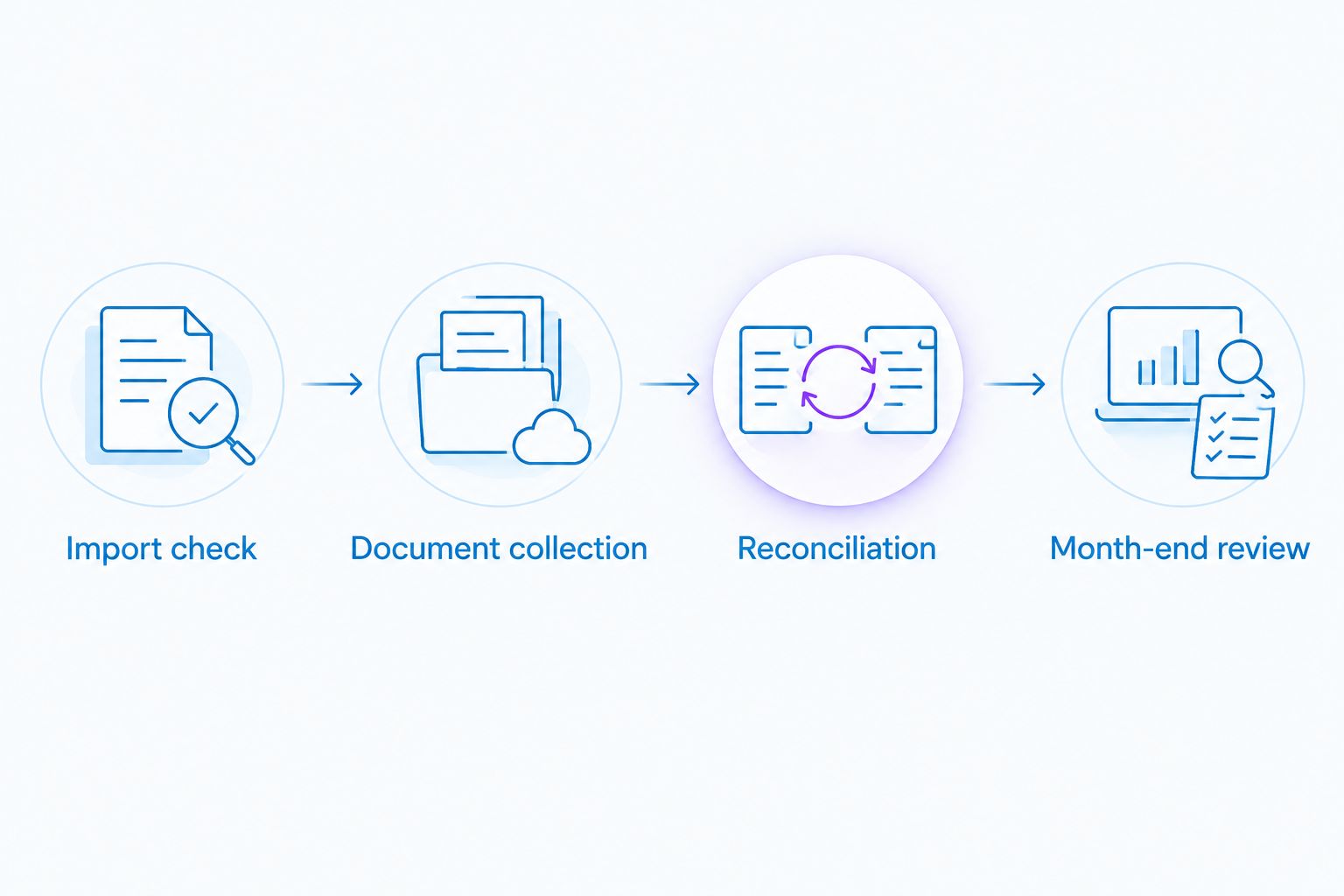
The connection needs an operating routine. Give each part a named owner so imported transactions do not accumulate without review.
- Import check: Assign responsibility for checking that the feed continues and investigating missing statement periods.
- Document collection: Decide how invoices, receipts and explanations for unfamiliar payments reach the person doing the bookkeeping.
- Reconciliation: Agree who matches transactions and who answers questions about business purpose, transfers or director payments.
- Month-end review: Compare Xero with the bank statement, resolve unexplained differences and review outstanding invoices and bills.
Expected result: The owner and accountant know who handles the bank feed, evidence, reconciliation and final review.
For a practical 2026 starting routine, reserve 15 minutes each week to collect missing documents and answer bookkeeping questions. This is a suggested diary slot, not a completion-time promise; the workload depends on your transactions and record quality.
Bring older Starling transactions into Xero
An adjacent workflow is filling a historical gap after connecting the live feed. Use a statement import only for the period that remains missing, not as a second route for transactions already arriving automatically.
First establish the earliest statement line present in Xero. Then obtain the missing period from Starling in a format supported by Xero’s statement importer, review its date and amount columns, and import only the uncovered transactions.
| Workflow | Best for | Advantage | Limitation |
|---|---|---|---|
| Connected bank feed | Ongoing bookkeeping | Removes repeated statement-file uploads | Still needs completeness checks and reconciliation |
| Statement-file import | A defined historical gap | Lets you bring in a specific missing period | Creates duplicates if it overlaps existing statement lines |
Use the feed for ongoing records and a controlled statement import for a confirmed gap. Neither method replaces supporting invoices or a review of the accounting treatment.
After importing history, check the boundary dates again. Two matching amounts on the same day are not automatically duplicates: separate genuine payments can share an amount. Compare references and the bank statement before removing anything.
For your 2026 file, retain a note of the imported period and the reason for it. That gives the next reviewer a clear explanation of where the live feed starts and the historical import ends.
Troubleshooting the Starling–Xero connection
The wrong Xero organisation appears
Check which Xero login you used and which organisations it can access. Do not authorise a similarly named business because it is the only option shown. Ask the organisation’s administrator to confirm your access, then restart the authorisation with the correct login.
Authorisation finishes but transactions are missing
Check the destination bank account, the date coverage and whether you are looking for completed rather than pending activity. Compare with Starling’s statement records. Check the connection status and current provider guidance before attempting another setup; repeated connections are not a substitute for finding the missing period.
Transactions appear twice
Compare the duplicate lines with any manual statement imports and the feed’s starting boundary. Establish which statement line is duplicated and whether either version has been reconciled. Do not delete invoices or bills to fix duplicate bank statement lines. Ask your accountant to review reconciled duplicates before changing them.
The bank balance does not agree
Compare balances at the same date and establish whether you are viewing a statement balance or an accounting balance. Check opening balances, missing statement lines, duplicates and manually entered transactions. A balance comparison without a shared date does not establish that the feed is wrong.
Reauthorisation is requested
Use the connection’s renewal prompts with an authorised account holder. Do not assume a renewal request requires a new Xero bank account. Once access is restored, check the last statement date before the interruption and the first date afterwards for gaps or overlap.
Customise your workflow
The next improvement is not another connection. It is deciding how bank transactions become reliable monthly accounts.
For a limited company, include a review of transfers, director transactions, customer receipts and supplier payments. For a sole trader, separate business activity from personal spending. Neither workflow should classify a payment solely from its bank description.
If you use suggested matches or bank rules, review them before treating them as routine. A familiar supplier can provide different items, and the bank reference does not establish the VAT treatment. Keep the supporting document attached or otherwise accessible to the person reviewing the entry.
Gowin Accountants Ltd provides Xero-based accounting, bookkeeping, tax, VAT and payroll services. Its fixed-fee positioning gives you a starting point for discussing ongoing support; the trade-off is that a service arrangement still needs clear responsibilities, timely records and an agreed scope. Do not treat a fixed fee as evidence that every extra task is included.
For a 2026 support agreement, define who checks feed interruptions, resolves coding questions and signs off the monthly reconciliation. Ask how additional work is identified and agreed before it starts.
Discuss ongoing Xero bookkeeping support
Clarify fixed fees, bookkeeping responsibilities and the support your business needs.
FAQ
How do I connect Starling Bank to Xero?
Use the Xero integration in Starling’s Marketplace, sign in to Xero and authorise the intended organisation. Complete the connection prompts, then compare imported transactions with Starling before starting reconciliation.
Does connecting Starling to Xero complete my bookkeeping?
No. The connection imports bank transactions, but you still need to match invoices and bills, record the correct accounting treatment and check supporting documents. The bank feed does not establish VAT treatment or business purpose.
Can I connect Starling to an existing Xero bank account?
Use the existing matching bank account where the connection process offers that choice. Check the account details and existing statement coverage first so you do not create a second record for the same real bank account.
How do I add older Starling transactions to Xero?
Identify the period missing from Xero and use a supported statement-file import for that gap. Check the boundary against existing statement lines so the historical import does not overlap the connected feed.
Why are my Starling transactions duplicated in Xero?
An overlapping statement import and bank feed is one cause of duplicate statement lines. Compare dates, amounts and references against Starling before removing anything, and review reconciled entries with your accountant.
Should I create a new transaction for every Starling payment?
No. Match the bank statement line to an existing invoice, bill or other accounting entry when one already records the transaction. Creating another entry can duplicate income or expenses.
Can an accountant manage my Starling and Xero bookkeeping?
An accountant can support reconciliation and ongoing bookkeeping through agreed access and responsibilities. Gowin Accountants Ltd provides Xero-based accounting and bookkeeping services; confirm the work included in your fixed-fee arrangement before appointing support.
One last thing
A tidy reconciliation screen can still contain incorrectly classified transactions. Clearing the queue proves that statement lines have been dealt with, not that every entry has the right business purpose or tax treatment.
Keep one unresolved-items list with the date, amount, question and person responsible. Resolve the question against evidence instead of choosing a convenient account code just to finish the screen. This guide covers the general workflow; ask for advice tailored to your business before making uncertain accounting or tax decisions.