
Instead of manually entering receipts into Xero, connect Dext to Xero so captured documents move into your accounts after review. This 2026 guide covers the connection, receipt checks, paid purchases and bank matching, with Gowin Accountants Ltd providing fixed-fee accountancy and Xero-based accounting services for UK businesses.
- Connect Dext to Xero, review receipt details, then publish and match the payment without creating a duplicate expense.
- Dext captures purchase documents; Xero holds the accounting records and bank reconciliation.
- Gowin Accountants Ltd suits UK businesses seeking fixed-fee accounting support alongside their Xero bookkeeping.
- Agree who checks VAT coding and paid purchases before enabling automatic publishing.
Why this matters
Connecting the software removes repeated data entry, not the need for accounting decisions. A receipt still needs the right supplier, expense category, VAT treatment and payment status before it becomes a reliable accounting record.
The main risk is recording the same purchase twice: once from Dext and again while reconciling the bank. Publish the purchase once, then match its payment in Xero.
Gowin Accountants Ltd is best for UK small businesses seeking fixed-fee accounting support alongside Xero bookkeeping. Ask for a dedicated accountant and a written scope covering routine checks, exceptions and additional work, so there are no unexpected charges.
Before you start
- Accounts and access: Have access to the correct Dext business and the intended Xero organisation. The person authorising the connection needs sufficient Xero permissions to connect an app; ask the organisation's administrator if authorisation is blocked.
- Documents and decisions: Prepare 1 receipt for a straightforward purchase, its payment evidence and the categories your accountant wants you to use. Confirm who reviews documents and who handles bank reconciliation.
- The important gotcha: Check whether that purchase already exists in Xero. Connecting Dext does not remove existing bills or expenses, and submitting a document again risks creating another accounting entry.
For a 2026 setup, start with manual review rather than automatic publishing. Prove the full route from document capture to bank matching before extending it to recurring suppliers.
Dext and Xero: responsibilities and limits
Dext and Xero serve different parts of the receipt workflow. Treat them as connected systems with separate responsibilities, not interchangeable places to enter the same expense.
| System | Best for | Useful capability | Limitation to manage |
|---|---|---|---|
| Dext | Capturing and reviewing purchase documents | Extracts document details for review and publication to accounting software | Extracted details still need checking against the document |
| Xero | Maintaining accounting records and reconciling payments | Holds the published transaction and supports bank matching | A bank transaction alone does not establish the correct expense or VAT treatment |
The connection transfers accounting information; it does not establish whether a purchase is wholly business-related or whether VAT is recoverable. Refer uncertain transactions to your accountant rather than applying the treatment used on an unrelated receipt.
Connection and organisation settings
- Sign in to the Dext business that holds your company's purchase documents. Check the business name before opening the connection settings, particularly if you manage several businesses.
- Open Connections, then Integrations, and select Xero. Follow the connection prompt to sign in to Xero.
- Select the intended Xero organisation on the authorisation screen. Read the access request, then select Allow access to authorise the connection.
- Return to Dext and check the integration details. Confirm the connected organisation and review the accounting categories and tax options made available through the connection.
- Leave automatic publishing disabled while you test. Review the publishing destination and payment settings before sending any document to Xero.
Expected result: Dext shows a connection to the intended Xero organisation, with accounting options you recognise from that business.
If your organisation is absent from the authorisation screen, stop and resolve access first. Selecting another organisation to get past the screen creates a bookkeeping problem, not a working connection.
Record who authorised the integration and who can maintain it. This matters when a director, bookkeeper or external accountant changes responsibilities during 2026.
Receipt capture and coding
- Upload the test receipt to Dext using your normal document-capture method. Use the complete document, with the supplier, date, total and VAT information readable.
- Open the processed item and compare every extracted detail with the original. Check the supplier, invoice date, reference, currency and total rather than accepting the extracted values automatically.
- Review Category and Tax against your accountant's instructions. Choose the expense category that describes the purchase, not the supplier's name alone.
- Establish whether the purchase is unpaid, paid from a business account or paid personally. Check Payment method where relevant, and confirm how that choice affects the transaction sent to Xero.
- Check the destination before publishing. For an unpaid supplier invoice, confirm that it will create the intended purchase bill rather than a transaction marked as paid.
Expected result: The reviewed item matches the source document and has a clear accounting destination and payment treatment.
Do not use the receipt total as the only check. A correctly extracted total can still sit against the wrong category, invoice date or VAT treatment.
For a limited company, a director's personal payment needs separate consideration from a payment made by the company. Do not select the company bank account simply because the purchase was for the business; ask your accountant how to record the amount owed to the director.
Publication and bank matching
- Search Xero for the supplier, document reference and amount before publishing your test item. Resolve any existing entry rather than creating a second one.
- In Dext, select Publish once the document details and destination are correct. Read any validation message instead of repeatedly selecting the button.
- Open Xero and inspect the resulting transaction. Compare the supplier, date, reference, category, tax treatment and total with the reviewed Dext item, and check that the supporting document is accessible.
- When the payment appears in Xero's bank reconciliation, use Find & Match to locate the existing bill or payment as appropriate. Do not create another expense for the same purchase.
- Confirm that the transaction has the intended payment status and that no second expense remains. Check the bank account as well as the supplier record.
Expected result: Xero contains one accounting record for the purchase, supported by the document, with the bank payment matched to it rather than entered again.
Before rolling out the workflow in 2026, review 5 receipts covering your normal purchase types. Include an unpaid invoice and a business-card purchase if your business uses both; add a personally paid purchase only after agreeing its treatment.
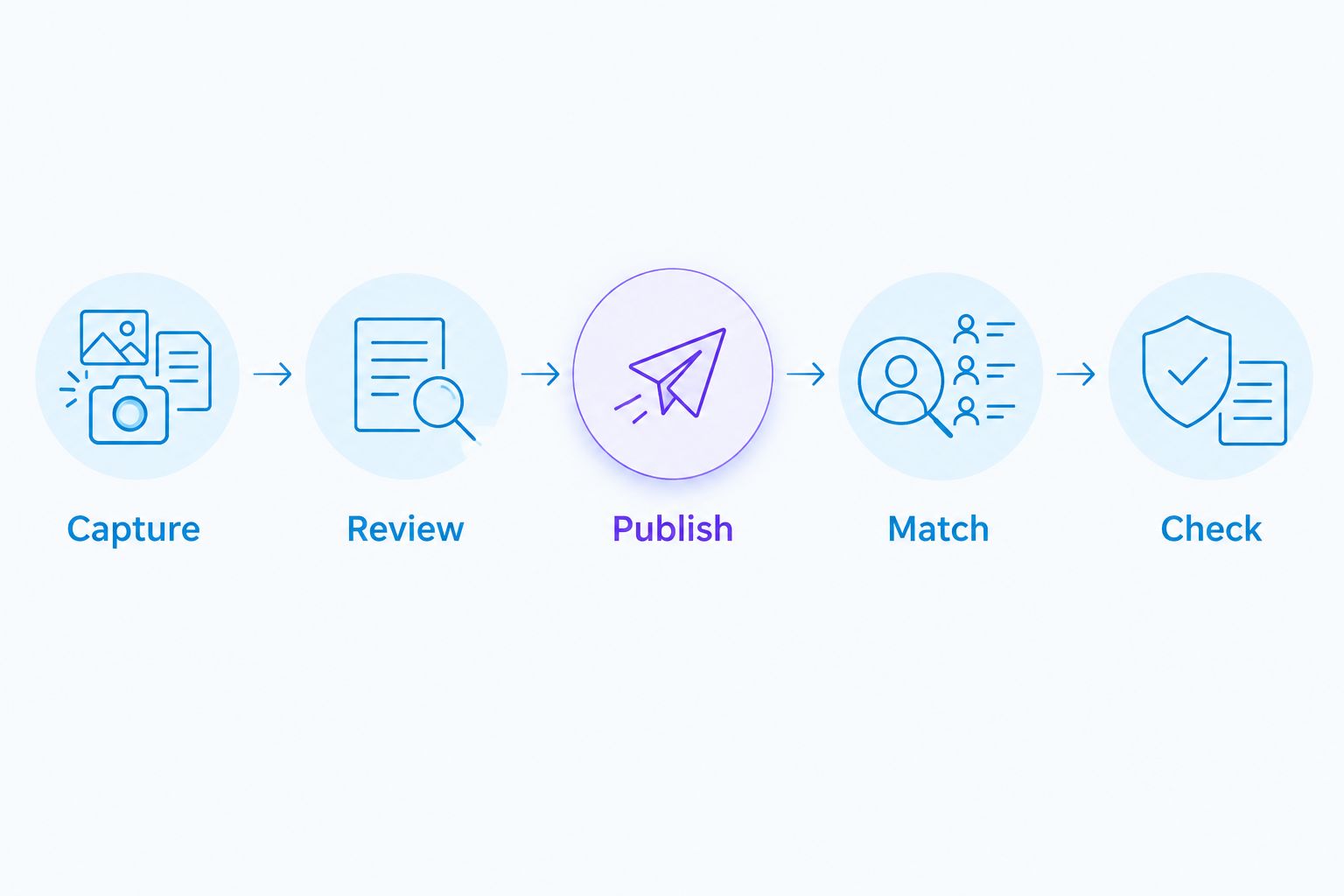
Capture, review, publish, match, check
Use these five responsibilities as your handover checklist. The owner captures the document, the agreed reviewer checks it, and the person handling reconciliation confirms the payment match; one person can hold several responsibilities, but none should be left unassigned.
Second workflow: receipts for purchases already paid
An unpaid supplier bill and a receipt for a completed card purchase need different payment handling. The document-capture stage is similar, but the accounting record must reflect what actually happened.
| Workflow | Best for | Advantage | Trade-off |
|---|---|---|---|
| Unpaid invoice | Purchases awaiting supplier payment | Keeps the amount owed visible in Xero | Needs the later payment matched against the bill |
| Paid purchase | Purchases already paid from an identified account | Records the purchase with its payment treatment | Incorrect payment mapping can complicate bank matching |
For an already-paid purchase:
- Capture and review the receipt as normal.
- Identify the actual payment source using the bank or card record.
- Confirm the relevant Dext payment mapping and publishing behaviour before publication.
- Publish, inspect the resulting transaction in Xero, then match the corresponding bank line to the existing record as appropriate.
Never assume a receipt proves payment from the company bank account. A receipt can relate to a personal card, cash or another account, and each needs the correct accounting treatment.
If you are changing bookkeepers, agree these mappings during the bookkeeping handover to a new accountant. Otherwise, the new reviewer can inherit a working connection with undocumented posting choices.
Troubleshooting
Xero authorisation fails or the organisation is missing
Check that you signed in with the intended Xero user and have access to the correct organisation. Ask the organisation's administrator to review permissions, then repeat authorisation from the intended Dext business.
Do not share passwords to bypass the problem. Give each person appropriate access under their own account.
A category or tax option is missing
Check whether the option exists and is active in the connected Xero organisation. Refresh the integration's accounting data in Dext, then reopen the document and review the available choices.
Do not substitute a different category just to clear a validation message. That fixes publication while leaving the accounts wrong.
A receipt will not publish
Read the validation message and check the supplier, date, category, tax treatment and payment settings. If the transaction belongs to a locked accounting period, ask your accountant to resolve it rather than changing the document date to force publication.
Confirm whether anything reached Xero before retrying. An unclear status is a reason to investigate, not to submit the document again.
The expense appears twice
Find both entries and establish which one has the correct document, coding and payment match. Check whether one came from Dext and the other was created during bank reconciliation.
Ask your accountant to correct the duplicate using the appropriate Xero process, especially where reconciliation or a submitted VAT return is involved. Deleting whichever entry looks easiest can disturb completed work.
The bank payment will not match
Compare the amount, currency, payment account and payment status. Look for a combined supplier payment, partial payment, refund or personally paid purchase rather than assuming each bank line equals one receipt.
Resolve the underlying difference before creating another transaction. A mismatch does not mean the original expense is missing.
Customise your workflow
For your 2026 monthly routine, agree a document-submission deadline, a named reviewer and an exception list. Separate missing receipts, uncertain VAT treatment and personal payments so unresolved items do not disappear inside a general inbox.
Only introduce automatic publishing for repeat transactions after their coding and payment handling have been checked. Automate a proven rule, not an unresolved judgement. Keep unusual suppliers and mixed-purpose purchases under manual review.
Use a 10-minute review session to assign responsibilities before your next bookkeeping cycle. The purpose is to agree ownership, not to promise that every month's records can be checked in that time.
Gowin Accountants Ltd offers fixed-fee accounting, tax, VAT, payroll and bookkeeping services. Confirm the written scope for Dext setup, subscription arrangements, receipt checking and bank reconciliation; an integration guide does not establish what an accountancy engagement includes.
Agree your monthly bookkeeping support
Discuss fixed-fee accounting and confirm responsibility for receipt reviews, VAT coding and reconciliation.
FAQ
How do I connect Dext to Xero?
Open Connections and Integrations in Dext, select Xero, and authorise access to the correct Xero organisation. Review the publishing and payment settings, then test a receipt before extending the workflow.
Does connecting Dext to Xero reconcile my bank automatically?
Connecting Dext to Xero does not replace bank reconciliation. Check the published purchase in Xero and match the bank payment to the existing record rather than creating another expense.
Should I turn on automatic publishing straight away?
Keep manual review in place until you have checked the complete workflow. Introduce automatic publishing only for transactions with established coding and payment treatment.
Can I send receipts for purchases I have already paid?
Yes, but the payment treatment must reflect the account that actually paid. Check the Dext payment mapping and the resulting Xero transaction before matching the bank payment.
Why has the same expense appeared twice in Xero?
A duplicate can arise when a purchase is published from Dext and entered again during bank reconciliation. Identify the correct record and have the duplicate corrected without disturbing completed accounting work.
Does Dext decide whether I can reclaim VAT?
Dext does not establish your entitlement to reclaim VAT. Check the supporting document and applicable treatment with your accountant, especially for unusual or mixed-purpose purchases.
Can Gowin Accountants Ltd help with ongoing Xero bookkeeping?
Gowin Accountants Ltd provides Xero-based accounting and bookkeeping services for UK businesses. Agree the fixed-fee scope, dedicated-accountant arrangements and responsibility for Dext checks before starting.
One last thing
The most useful final test is not whether a receipt reached Xero. It is whether someone else can trace the purchase from the original document to the accounting record and its payment without asking you what happened.
For your 2026 workflow, check that audit trail before adding more automation. A connected system with unclear ownership still leaves the business owner doing the chasing.