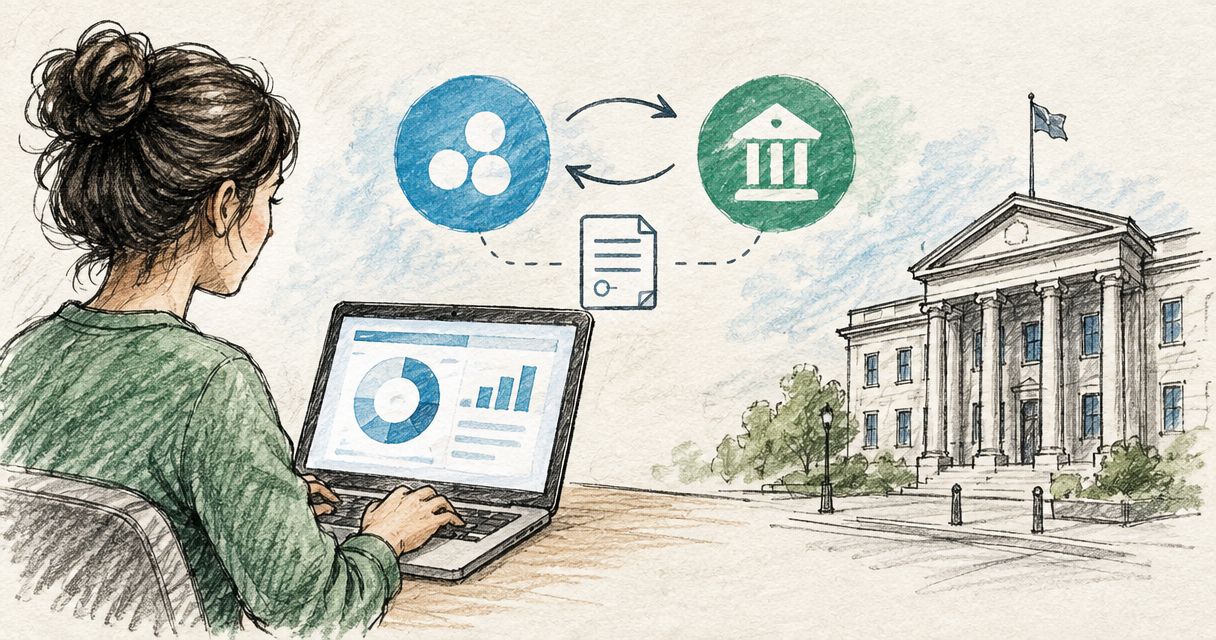
Instead of manually copying PayPal transactions into your accounts, connect PayPal to Xero through its bank-feed connection, then reconcile receipts, fees and transfers against your records. This 2026 guide explains the setup and the checks that stop imported payments becoming duplicate sales.
- Connect PayPal to Xero through a bank feed, then reconcile transactions against invoices, fees and transfers.
- A PayPal bank feed imports statement activity; it does not replace invoice matching or VAT checks.
- Gowin Accountants suits UK businesses seeking fixed-fee accounting support alongside Xero bookkeeping.
- Choose a clean start date and check existing imports before connecting your PayPal account.
Why this matters
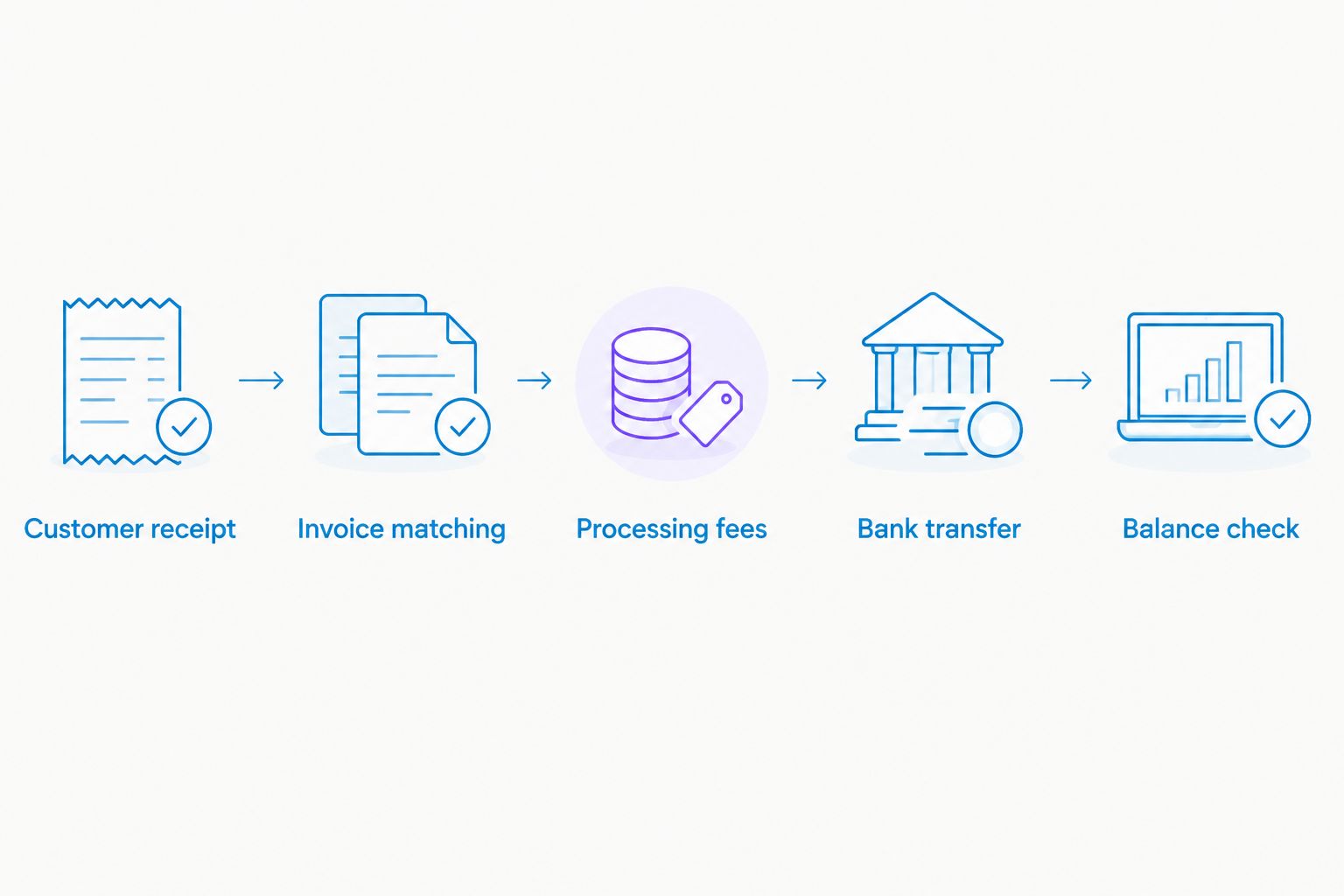
Connecting PayPal to Xero moves transaction data; reconciliation establishes what the money represents. A customer payment, a processing fee and a withdrawal to your bank account need different accounting treatment.
Recording only the amount reaching your bank can hide fees and understate gross receipts. Recording that withdrawal as another sale duplicates income already recognised through an invoice or sales record.
Gowin Accountants provides fixed-fee accounting and Xero-based bookkeeping services for UK businesses. If you want ongoing support, ask Gowin Accountants to confirm the bookkeeping responsibilities, dedicated-accountant arrangements and written scope so unexpected charges are addressed before work begins.
Before you start
Prepare these items before changing your live records:
- Account access: access to the correct Xero organisation with permission to manage bank accounts, plus the PayPal login and authority needed to approve the connection. Complete authentication yourself; do not share passwords with your bookkeeper.
- Source records: PayPal transaction activity, your existing Xero PayPal ledger, customer invoices and the date through which bookkeeping is already reconciled. Identify each currency you actually hold.
- The overlap check: inspect existing statement imports and connected sales systems first. A new feed must not recreate transactions already imported, and a sales integration must not create revenue already recorded elsewhere.
For your 2026 setup, agree who will maintain the feed and who will resolve unmatched payments. An owner approving the connection is not the same as someone taking responsibility for monthly reconciliation.
Start with 1 PayPal account and check 1 completed payment plus 1 bank transfer before extending the workflow. These are setup checks, not a substitute for reviewing the remaining transactions.
Choose the workflow you actually need
A PayPal bank feed and PayPal payment acceptance on Xero invoices solve different problems. You can use both, but connecting one does not automatically complete the other.
| Workflow | Best for | What it does | Main limitation |
|---|---|---|---|
| PayPal bank feed | Businesses already receiving or spending money through PayPal | Brings PayPal statement activity into Xero for reconciliation | Imported activity still needs matching, coding and balance checks |
| PayPal on Xero invoices | Businesses wanting customers to pay Xero invoices through PayPal | Adds a payment route to eligible invoices through payment-service settings | Invoice-payment setup does not replace reconciliation of the PayPal balance |
For an established PayPal account, set up the bank feed first and prove the balance. Add invoice payment acceptance separately if it fits how you bill customers.
Neither workflow decides the correct VAT treatment of a sale. That depends on the underlying transaction and your business circumstances, not simply the payment provider.
PayPal account connection
Select the correct organisation and account
- Open the Xero organisation belonging to the business that owns the PayPal account. Check the organisation name before proceeding.
- Open Accounting, then Bank accounts. Inspect the existing account list for a PayPal account before adding anything.
- Select Add Bank Account and search for PayPal. Choose the PayPal connection offered in Xero and follow its authorisation process.
- Sign in to PayPal when redirected, complete authentication and review the access request. Approve only the intended business connection.
- Follow the connection prompts to select the account and statement-import period offered. If a PayPal ledger already exists in Xero, check whether the connection can attach to that ledger rather than creating another.
Xero and PayPal can change screen wording during 2026. Use the connection presented inside your Xero organisation; do not enter credentials into an unrelated connection page found through an advert or unsolicited message.
Expected result: the intended PayPal account appears in Xero with its connection established. A successful authorisation confirms access, not that every historical transaction has arrived.
Check currencies before importing broadly
Compare the currency of the Xero bank account with the PayPal balance it represents. Do not combine unrelated currency balances into a sterling ledger simply because the final withdrawal reaches a UK bank.
If you hold foreign currencies, check your Xero subscription's currency support and the available PayPal connection options before importing. Ask your accountant how to record conversions and exchange differences where the accounts do not already have an agreed method.
Statement start point
Establish the opening position
- Identify the last date already reconciled in Xero. Compare the existing PayPal ledger with PayPal's transaction history, not just the latest bank withdrawal.
- Choose the feed start date offered by the connection that avoids overlap with existing statement lines. Keep a note of that choice.
- Check the earliest imported activity against PayPal's records. If the available feed history does not cover the required period, identify the gap before importing a statement file.
- Establish the balance immediately before the imported period begins. Ask your accountant to enter or check the opening position where earlier bookkeeping already exists.
- Compare transactions across the boundary between old records and the new feed. Look for both missing activity and repeated entries.
Expected result: Xero contains a continuous statement history from the agreed starting point, supported by a clear opening balance.
Do not change the opening balance merely to force today's figures to agree. A difference can come from missing fees, duplicate imports, currency movements or an incorrect start date. Find the cause before adjusting the ledger.
Keep the source statement and setup note with your bookkeeping records. The next person reviewing the account should be able to understand where the imported history begins without reconstructing your decisions.
Reconciliation rules
Match receipts, fees and transfers
- Open the PayPal account's Reconcile screen in Xero. Select a completed customer receipt and inspect the supporting invoice or sales record.
- If the sale already exists, match the receipt to it. Use Find & Match when the correct record is not shown as the suggested match; do not create another sale just to clear the statement line.
- Compare the customer payment, processing fee and resulting balance movement with PayPal's transaction detail. Record each component once, using the appropriate accounts.
- For a withdrawal from PayPal to your business bank, use Transfer to identify the receiving bank account. Match the corresponding receipt in that bank account rather than coding it as new turnover.
- Review a refund against its original sale and supporting credit note where applicable. Keep refunds separate from processing fees and ordinary transfers.
Expected result: receipts clear the correct customer balances, fees appear separately, and transfers move money between accounts without creating revenue.
The accounting route depends on how your sales enter Xero. A business issuing Xero invoices needs invoice matching; an online seller importing sales summaries needs a consistent clearing-account method. Do not mix those methods without checking how revenue is already recognised.
Check the balance and evidence
Compare Xero with PayPal at the same date, in the same currency and on a consistent basis. A current available balance is not automatically the same measure as a closing statement balance, particularly when transactions are pending or funds are held.
For your 2026 bookkeeping routine, retain the records that explain sales, fees, refunds and currency conversions. A feed description alone does not establish the VAT treatment or replace the underlying invoice.
Use this guide to the records your VAT accountant needs each quarter to organise the supporting documents. This workflow is general bookkeeping guidance; obtain advice on VAT treatment specific to your transactions.
PayPal payments on Xero invoices
Use this adjacent workflow when you want customers to pay invoices through PayPal, rather than only importing existing PayPal activity.
- Open the payment-service settings in Xero and inspect the PayPal option offered for your organisation.
- Follow the PayPal setup and authorisation prompts. Confirm the receiving PayPal account belongs to the correct business.
- Check which invoice branding theme or payment settings will display the payment option. Do not assume it applies to every invoice automatically.
- Preview an eligible invoice to confirm the intended payment option appears before sending it to a customer.
- When a genuine payment arrives, inspect the invoice status, PayPal activity and Xero reconciliation together. Check how the payment and fee were recorded before entering anything manually.
Expected result: the intended invoices offer PayPal as a payment route, and the resulting payments can be reconciled without recording the sale twice.
The benefit is a payment route attached to your invoice process. The limitation is that fees, refunds, transfers and account balances still need bookkeeping attention.
Do not create a live payment solely to test the accounting unless you understand how to reverse and document it. Previewing the invoice checks presentation; reviewing the next genuine payment checks the accounting workflow.
Troubleshooting
The connection succeeds but transactions are missing
Check the account selected, the import start date and the period actually available through the feed. Compare missing activity with PayPal's completed transactions rather than assuming pending items should already be present.
If older activity falls outside the available feed period, prepare a statement import covering only the missing dates. Inspect its boundary against existing lines before importing.
The same transactions appear twice
Look for overlap between a manual statement import and the feed, or a repeated import covering the same dates. Identify which statement lines are duplicates before removing anything.
Do not delete a genuine invoice or payment merely because the bank statement contains repeated lines. Correct the duplicated statement activity and check any affected reconciliation separately.
Sales are higher than the underlying records
Check whether you created a new sale while reconciling a payment for an invoice already recorded in Xero. Also inspect any sales integration that posts revenue independently.
Correct the duplicate accounting entry, then match the payment to the original record. A PayPal withdrawal into your bank is a transfer, not a second sale.
The PayPal balance does not agree
Compare the same date and currency first. Then inspect the opening position, missing fees, refunds, currency conversions and transfers.
Work from source records rather than posting a balancing adjustment without an explanation. A cleared reconciliation screen does not prove the underlying accounts are correct.
The feed stops updating
Check for a connection notice in Xero and confirm that the authorised PayPal access remains valid. Ask the authorised account holder to complete reconnection when required.
Before importing transactions manually, identify the last successful feed date. Otherwise, the recovered feed and your temporary import can overlap.
Customise your workflow
A useful 2026 workflow has an owner, a review routine and a clear exception process. Decide who handles unmatched receipts, missing documents, refunds and changes to the PayPal connection.
Use bank rules only for predictable transactions whose accounting treatment is understood. Avoid a broad rule that treats every PayPal receipt as sales: transfers, refunds and settlements do not all represent new revenue.
Gowin Accountants offers Xero-based accounting alongside bookkeeping, VAT, tax and payroll services. For ongoing accounting support, confirm the fixed fee, dedicated accountant and agreed scope in writing, including who handles PayPal reconciliation and unresolved differences.
Discuss your monthly accounting support
Agree the scope for PayPal reconciliation, Xero bookkeeping and ongoing accounting support.
FAQ
How do I connect PayPal to Xero in 2026?
Open the bank accounts area in Xero, add the PayPal connection and complete PayPal authorisation. Check the import start date, existing statement history and account currency before reconciling transactions.
Does connecting PayPal to Xero automatically reconcile everything?
No. The bank feed imports statement activity, but receipts, fees, refunds and transfers still need correct matching or coding. Review suggested matches rather than accepting them without checking.
Can I connect an existing PayPal account without duplicating transactions?
Yes, provided you check existing imports and choose a suitable starting point. Inspect the boundary between the old statement history and new feed before completing reconciliation.
Should a PayPal withdrawal be recorded as sales in Xero?
No, a withdrawal from your business PayPal account to your business bank is a transfer between accounts. Record the underlying customer sale separately through the appropriate invoice or sales process.
Does a PayPal bank feed let customers pay Xero invoices?
No, invoice payment acceptance is a separate payment-service setup. You can use it alongside the bank feed, but must still reconcile the resulting PayPal activity.
Why does my Xero PayPal balance differ from PayPal?
A difference requires a check of dates, currencies, opening balances and transaction completeness. Inspect fees, refunds, transfers and duplicate imports before making an adjustment.
Can an accountant manage PayPal reconciliation each month?
Yes, monthly reconciliation can be assigned to an accountant or bookkeeper within an agreed service scope. Gowin Accountants provides Xero-based accounting and bookkeeping; confirm the specific PayPal responsibilities before appointing support.
One last thing
Test the full money trail, not just the connection. Trace a genuine customer payment from its invoice or sales record through the PayPal fee and final bank transfer. If that trail is clear and the balances agree, you have a workflow you can maintain—not merely an authorised feed.