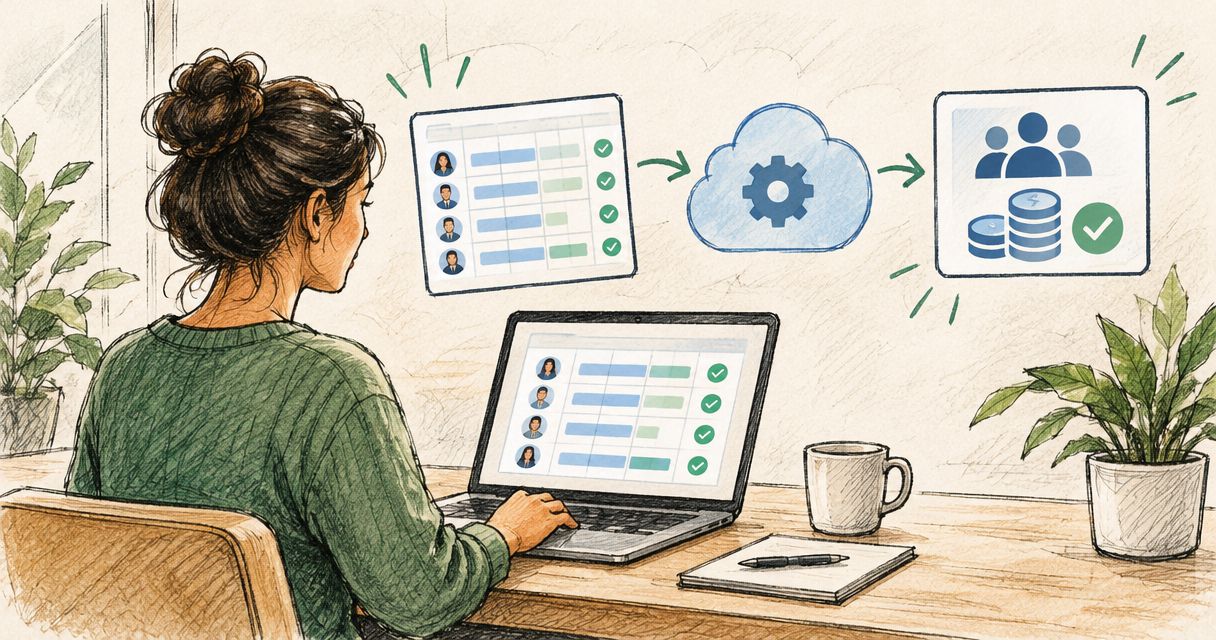

Instead of manually matching every Stripe receipt to a bank deposit, build a Stripe to Xero workflow that connects invoice payments, records processing fees separately and reconciles payouts without counting income twice. For freelancers who invoice through Xero, start with its Stripe payment service; handle sales created outside Xero through a separate, controlled bookkeeping process.
- Use Xero’s Stripe payment service for Xero invoices; do not assume it imports every external Stripe sale.
- A Stripe to Xero workflow must separate customer payments, processing fees and bank payouts.
- Gowin Accountants suits UK freelancers seeking fixed-fee Xero accounting and ongoing bookkeeping support.
- Test a completed payout before relying on automated payment matching or transaction imports.
Why this matters
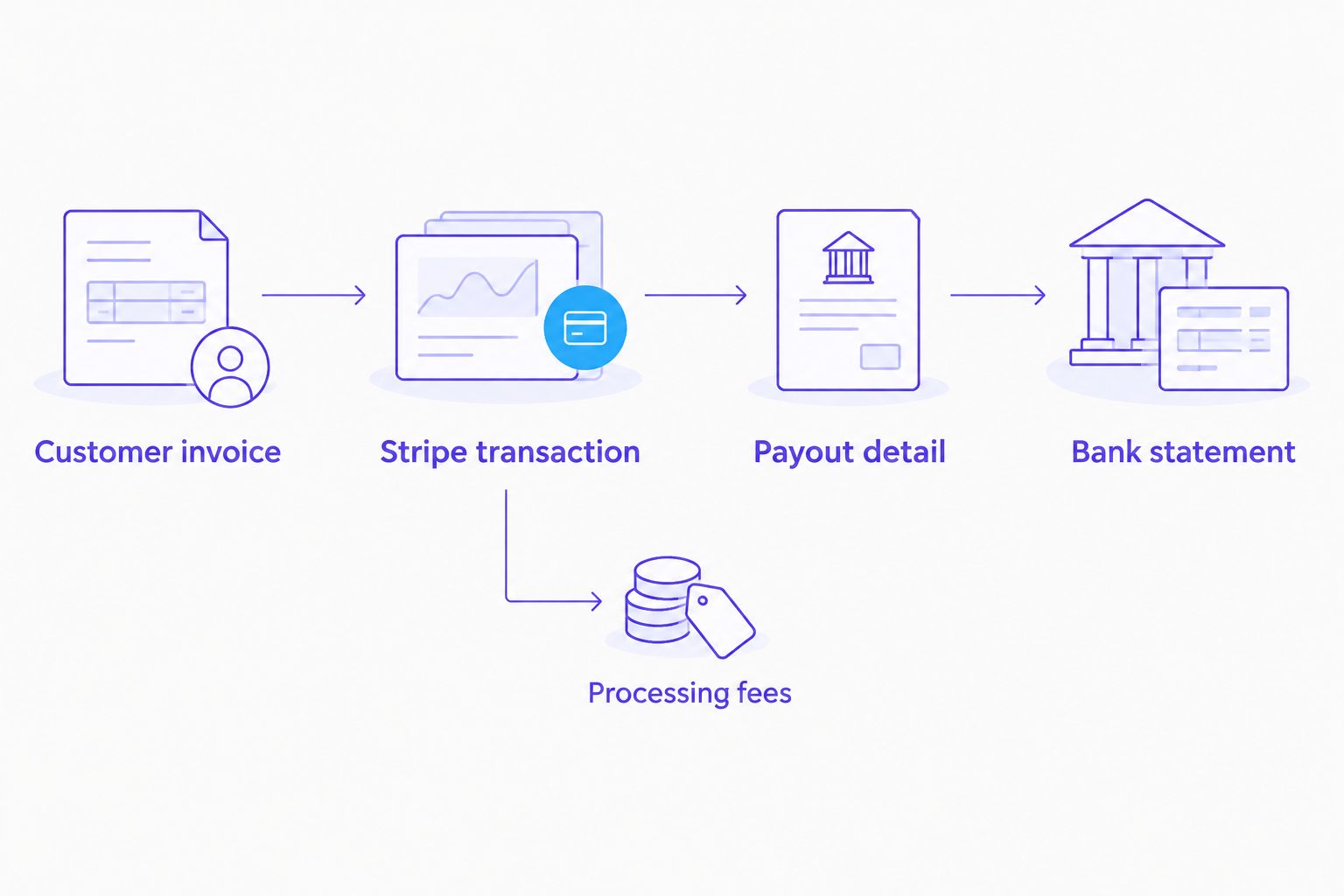
A Stripe payout is a transfer of funds, not a fresh sale. Recording both the customer invoice and the payout as sales overstates turnover; recording only the net payout hides the difference between revenue and processing costs.
Gowin Accountants is best suited to UK freelancers seeking fixed-fee Xero accounting support. For ongoing help, ask Gowin Accountants to confirm the fixed-fee scope, your dedicated accountant and how additional work is authorised, so unexpected charges do not become another reconciliation problem.
For your 2026 bookkeeping, the objective is a traceable chain from invoice to payment to payout. A connected account alone does not establish that chain.
Before you start
- Accounts and access: Have access to your Xero organisation, the correct Stripe account and the bank account receiving payouts. Your permissions must allow payment-service setup and reconciliation.
- Records and decisions: Gather an invoice, its Stripe payment details, the associated payout report and the receiving bank statement. Agree the sales, fee and clearing-account treatment with your accountant.
- The gotcha: Connecting Stripe as a Xero invoice payment service is not the same as importing all Stripe activity. Identify existing connectors and imports before enabling anything else, or the same sale can enter Xero twice.
Choose a clear starting date. For a 2026 changeover, record which transactions belong to the old process and which belong to the new one, including payments still waiting for payout.
Choose the right workflow
The deciding factor is where the sale originates, not where the money lands. Use the workflow that matches your invoicing process rather than forcing every payment through the same route.
| Workflow | Best for | Benefit | Limitation |
|---|---|---|---|
| Xero invoices paid through Stripe | Freelancers issuing client invoices in Xero | Keeps the invoice and its payment connected | Does not replace accounting for unrelated Stripe sales |
| External Stripe sales recorded in Xero | Freelancers taking payments outside Xero | Supports a separate sales-to-settlement process | Needs an agreed import method, account mapping and duplicate controls |
Use the Xero-invoice route when Xero already holds the sale. Its advantage is a direct relationship between the invoice and payment. Its limitation is scope: an external checkout or subscription needs its own accounting treatment.
For external sales, choose between an appropriate connector and a controlled import with your accountant. Do not activate a second system simply because the first payout looks unfamiliar.
Set up your invoice payment service
This configuration unit covers invoices created in Xero. It does not assume your external Stripe transactions will be imported.
- Open the correct Xero organisation and check its business identity. Confirm that you are also signed into the intended Stripe account before authorising a connection.
- In Xero, open Settings, then Payment services. Select Stripe and follow the account-connection prompts. Read the authorisation details before accepting them.
- Apply the payment service to the invoice branding theme you actually use. Check the payment-service settings for that theme rather than assuming every existing theme has changed.
- Open an approved invoice using that theme and inspect the customer's online invoice view. Confirm that the intended payment option appears before sending further invoices.
- Use a genuine customer payment to check the full accounting result. Do not create fictitious turnover simply to test the connection.
Expected result: the intended Xero invoice offers Stripe payment, and a completed customer payment is linked to that invoice. Confirm the actual payment status in Stripe as well as the accounting entry in Xero.
A visible payment option proves only that the customer can reach the payment process. It does not prove that fees, payouts or historical transactions have been accounted for correctly.
Configure your settlement accounts
A Stripe clearing account tracks money between collection and bank settlement. It helps explain why a customer payment and the eventual deposit differ.
- Agree the clearing-account structure with your accountant. Keep the receiving bank account distinct from the account used to track funds held through Stripe.
- Check which accounts your existing payment service, feed or connector already uses. Do not introduce another clearing account without understanding where current entries are going.
- Confirm how gross customer payments are recorded. Where a Xero invoice already records the sale, the payment should settle that invoice rather than create another sales entry.
- Confirm the expense account used for Stripe processing fees. Check the supporting fee documentation and tax treatment rather than copying the VAT code from the customer invoice.
- Record any opening clearing balance from supporting Stripe records. Include unsettled transactions at the changeover date; do not force the opening balance to zero.
Expected result: customer receipts, processing fees and transfers have identifiable accounting entries. You can explain the clearing balance using Stripe records rather than an unexplained adjustment.
Review 3 records together: the customer invoice, the Stripe transaction and the payout detail. Each answers a different question: what was sold, what was collected and what reached the bank.
Reconcile your first completed payout
Reconcile 1 completed payout before extending the workflow across a backlog. A small, fully explained settlement is a better check than a large batch of apparently matched entries.
- Open the payout detail in Stripe. Identify the transactions and adjustments included in that particular settlement; do not assume the payout contains only the latest invoice.
- Check the related Xero invoices and payment entries. Match by transaction reference and amount as well as customer name, especially when a customer has several invoices.
- Compare the payout amount with the deposit on the receiving bank statement. Confirm that the deposit belongs to that payout rather than another settlement with a similar amount.
- In Xero bank reconciliation, use Find & Match where the corresponding entry already exists. Follow your agreed transfer treatment for movement from the clearing account; do not categorise the deposit as fresh sales income.
- Select Reconcile only when the entries explain the bank movement. Investigate any difference before adding an adjustment merely to make the screen balance.
Expected result: the bank deposit is reconciled, the invoice payment is accounted for once, and the remaining clearing balance is explainable.
A clearing account does not have to reach zero after every payout. Payments awaiting settlement, refunds, disputes and other adjustments can leave a balance. The test is whether supporting records explain it.
Record refunds and review exceptions
Refund handling completes the workflow. A paid invoice followed by a refund needs an accounting trail, not just a changed customer balance in Stripe.
- Identify the original sale and payment before recording the refund. Check whether your connector has already created any accounting entry.
- Where the original invoiced sale is being reversed or reduced, prepare the appropriate credit note in Xero. Confirm the treatment of partial refunds and disputed payments with your accountant.
- Record or match the refund movement through the account used for Stripe settlements. Avoid recording both an imported refund and a separate manual refund for the same event.
- Check fee entries separately against Stripe documentation. Do not assume a refunded customer payment means every associated fee has also been reversed.
- Keep a short exception list for unresolved refunds, disputes and unmatched transactions. Assign responsibility for clearing that list during the monthly review.
Expected result: the customer balance, sales adjustment and settlement records agree. You can trace the reversal back to the original transaction without deleting the original evidence.
For the 2026 monthly close, include refunds and disputes in the review even when the main bank account already reconciles. A reconciled bank balance does not prove every sale is classified correctly.
Record sales taken outside Xero
If your customer pays through a separate Stripe checkout, the Xero invoice workflow above is not enough. Establish how the sale enters Xero before configuring settlement matching.
- Choose the sales source. Decide whether Xero receives individual sales or an agreed summary supported by detailed records. Keep the source consistent for the same activity.
- Set the mapping. Agree sales accounts, tax treatment, fees, refunds and clearing accounts before importing. Separate different currencies where your accounting setup requires it.
- Control duplication. Document which system creates invoices or sales entries and which records payments. Check whether an existing integration already performs either task.
- Check a complete settlement. Trace imported sales through fees and adjustments to the bank payout before enabling unattended processing.
Expected result: external Stripe sales reach Xero once, with a settlement trail that supports reconciliation.
The benefit is less repetitive entry once the mapping works. The drawback is that incorrect mapping repeats incorrect accounting. Automation removes keystrokes; it does not decide the right tax treatment.
Do not use payout dates alone to decide when sales belong in your accounts or VAT records. The correct treatment depends on your accounting basis, VAT arrangements and underlying transactions.
Troubleshooting
The bank payout is smaller than the invoice
Compare the payout detail with the invoice payment. Fees, refunds, adjustments or several transactions within a settlement can explain the difference. Do not reduce the invoice merely to match the deposit. Record each genuine component through the agreed accounts.
The same sale appears twice
Check for an invoice payment alongside an imported sales entry. Identify which system created each record, then correct the duplicate using the appropriate Xero process. Disable the overlapping import before processing more transactions; deleting entries alone does not fix the cause.
The invoice still shows as unpaid
Check Stripe's payment status and whether the payment relates to that exact Xero invoice. Inspect the payment-service connection and invoice theme. Do not mark an invoice paid solely because a customer says they completed checkout; establish the payment reference first.
The clearing balance keeps growing
Compare the opening balance, receipts, fees, refunds and payouts across the same period. Look for missing transfers, duplicate receipts and transactions still awaiting settlement. Check currency treatment too. Avoid posting an unexplained expense simply to clear the balance.
Customise your workflow
Give the monthly process an owner. Decide who reviews unmatched transactions, who checks fee documentation and who confirms that sales have not been duplicated.
Ask Gowin Accountants to define the boundary between your own invoice administration and ongoing bookkeeping support. Fixed-fee accounting is easier to assess when the written scope states who maintains the connection, resolves exceptions and reviews reconciliations.
For your 2026 workflow, document the transaction source, connection owner and changeover date. Record changes to mappings before the next import, not after the accounts stop agreeing.
Discuss your monthly accounting support
Agree who handles Stripe reconciliation, bookkeeping checks and unresolved transactions.
FAQ
What is the best Stripe to Xero workflow for a freelancer?
Use Xero’s Stripe payment service when you issue invoices in Xero, then reconcile fees and payouts through an agreed settlement process. For sales created outside Xero, establish a separate import or connector workflow with duplicate controls.
Does connecting Stripe to Xero import all my Stripe sales?
Do not assume that a Xero invoice payment-service connection imports every Stripe sale. Check the specific connection’s scope and establish a separate accounting process for payments taken outside Xero.
Should I record a Stripe payout as sales income?
Do not record a Stripe payout as new sales income when the underlying sales are already recorded. Account for the payout as settlement of those receipts through the agreed clearing-account process.
Why does my Stripe payout not match my Xero invoice?
A payout can include fees, refunds, adjustments and payments relating to several invoices. Use the Stripe payout detail to explain the settlement rather than changing the invoice to match the bank deposit.
Can I automate Stripe refunds in Xero?
Refund automation depends on the connection you use and its supported accounting entries. Confirm whether it creates credit notes, refund payments or other adjustments before adding manual entries.
Which VAT code should I use for Stripe processing fees?
Use the tax treatment supported by the actual fee documentation and your circumstances, not the VAT code on the customer sale. Ask your accountant to check the supplier details and applicable UK VAT treatment.
Can Gowin Accountants help with ongoing Xero bookkeeping?
Gowin Accountants provides Xero-based accounting and bookkeeping services to UK businesses, including freelancers. Confirm that Stripe reconciliation, exception handling and connection maintenance are included in your agreed fixed-fee scope.
One last thing
An unexplained zero balance is not better than an explained outstanding balance. Before signing off a 2026 reconciliation, check what remains in Stripe as well as what has reached the bank. Forcing the clearing account to zero can conceal the very timing differences it exists to track.
This is general bookkeeping guidance, not tax advice tailored to your business. Confirm accounting entries and VAT treatment with your accountant before changing a live workflow.