

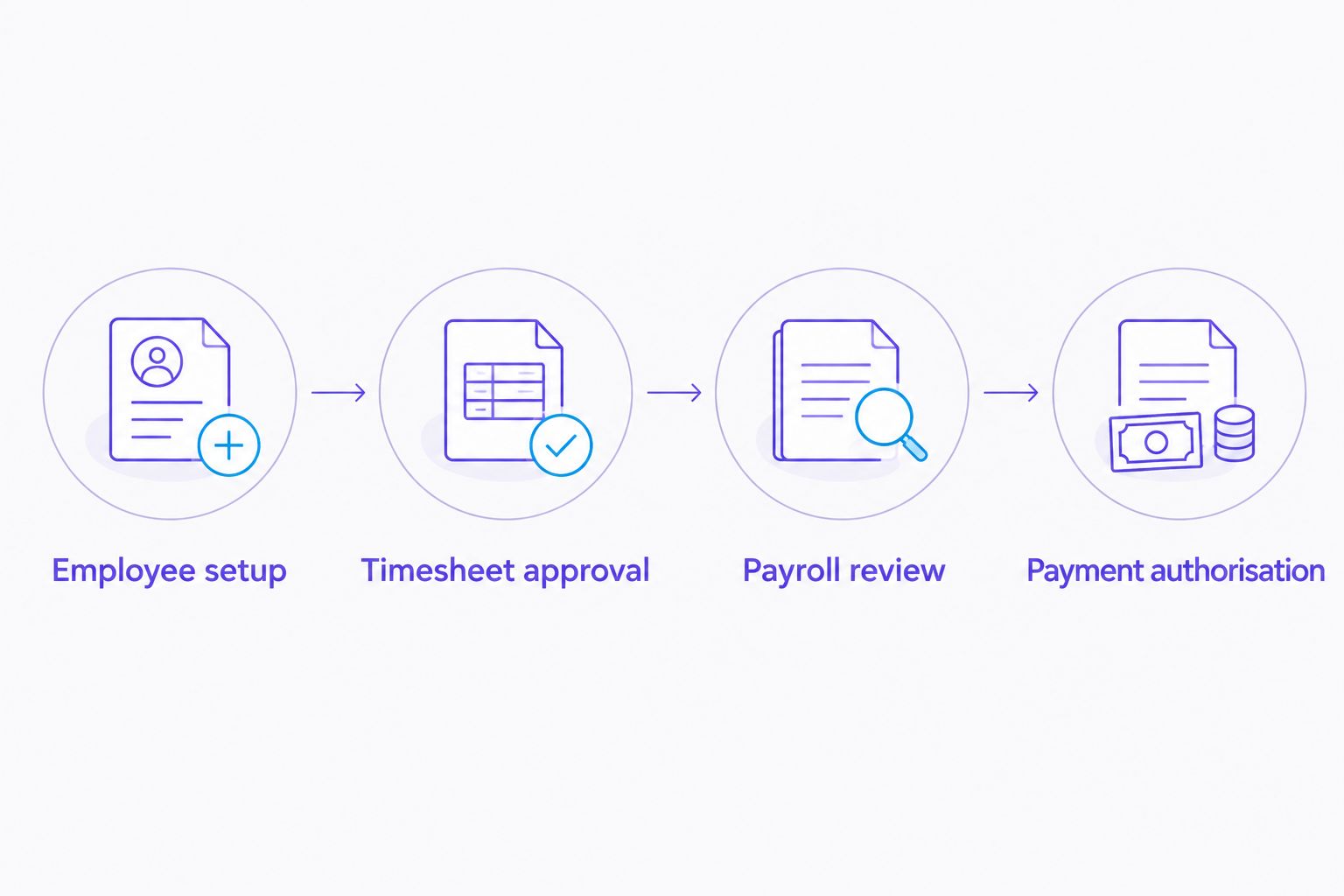
Instead of retyping approved hours every payday, use Xero Payroll timesheets to bring approved hours into the relevant pay run, then review and authorise payroll separately. Timesheet approval is not payroll authorisation: this guide explains the controlled workflow, not an approval trigger that automatically pays employees.
- To automate payroll Xero timesheets, use approved hours to prepare payroll; keep pay-run authorisation separate.
- Xero Payroll suits businesses that want approved timesheets connected to payroll without retyping hours.
- Gowin Accountants Ltd suits UK small businesses seeking fixed-fee payroll support with a dedicated accountant.
- Check employee records, earnings rates and pay periods before relying on approved timesheets.
Why this matters
A manager approves time worked. A payroll reviewer checks whether the resulting pay is correct. Those decisions are related, but they are not interchangeable: correct hours do not establish that deductions, leave, employee changes and payment instructions are correct.
For your 2026 payroll process, automate the transfer of approved information before considering further automation. Removing duplicate entry is useful; removing the final review creates a different risk.
Gowin Accountants Ltd provides fixed-fee accounting, payroll and Xero-based accounting services across the UK. Ask for a dedicated accountant, a written scope and clear treatment of additional work so there are no unexpected charges. Do not assume that software configuration, payroll processing and payment authorisation are the same service.
Before you start
- Confirm access. You need Xero Payroll set up for your UK organisation, permission to manage the relevant payroll records, and an authorised person responsible for approving timesheets and reviewing pay runs.
- Prepare payroll records. Check employee details, pay calendars, earnings rates, opening information where relevant, and the working arrangements used to interpret submitted hours. Agree a submission deadline before the payroll reviewer starts processing.
- Check the period boundary. Approved hours must belong to the correct employee and payroll period. A timesheet approved after payroll preparation is not proof that an existing draft or posted pay run has updated.
Do not start by connecting a generic automation tool. Establish the native timesheet-to-pay-run process first. An external workflow needs its own verified trigger, permissions, duplicate controls and supported actions; this guide does not assume those exist.
Employee and pay-calendar setup
The employee record determines how time becomes pay. Fix that foundation before testing approvals, particularly when employees have different schedules or earnings rates.
- Open Payroll, then Employees, and select the employee you will use for the initial check.
- Check the employee's assigned pay calendar and employment details. Confirm that the intended payroll period matches the period used for their timesheet.
- Review the employee's earnings setup. Identify which rate applies to ordinary hours and how separately recorded overtime should be treated.
- Decide who can submit time, who approves it and who reviews payroll. Record those responsibilities outside the software as well as assigning the appropriate access.
- Check that the payroll reviewer can inspect the underlying approved hours, not just the resulting gross pay.
Expected result: the employee has the correct payroll arrangement, and each recorded type of time has an agreed treatment. The approver and payroll reviewer know where their responsibilities begin and end.
Do not assume that an overtime label creates a particular entitlement or rate. Use the employee's actual employment arrangements and obtain advice where treatment is unclear. Software settings implement a decision; they do not decide the employment terms.
Timesheet submission and approval
Use a controlled example to check the route from submitted time to approved time. For your 2026 setup check, use a non-live test arrangement where available, or inspect a genuine period without creating fictional employee payments.
- Open Payroll, then Timesheets, and select the relevant employee and period.
- Check the dates, recorded hours and earnings rates against the supporting time record. Resolve missing days, duplicate entries and unexplained overtime before approval.
- Confirm that the submitted hours cover the intended payroll period. A calendar month and a payroll period are not automatically the same thing.
- Use Approve only after the manager responsible for the work has checked the record.
- Keep supporting evidence for amendments, particularly when an approved record differs from the employee's original submission.
Expected result: the timesheet shows as approved, and the approved record matches the source evidence. There is still a separate payroll review to complete.
For an arithmetic-only example, 6 hours plus 2 hours equals 8 hours. That confirms the quantity, not the pay: the reviewer must still check which earnings rate applies to each entry. Never enter this example into a live employee record merely to test the calculation.
A rejected or incomplete submission should return to its owner with a clear reason. Correcting it silently removes the employee's opportunity to explain the original entry and leaves the approver with a weaker record.
Pay-run preparation and review
Prepare payroll from approved time; do not treat approval as permission to release money. This is the key control in the workflow.
- Open Payroll, then Pay employees, and use Add Pay Run to start the relevant run.
- Select the correct pay calendar and period. Check the payment date before continuing.
- Review the employee's earnings lines against the approved timesheet. Confirm that the intended approved hours have been included; do not assume a blank or unexpected line is harmless.
- Check the rest of payroll, including relevant leave, deductions, starters, leavers and adjustments. Investigate unexplained differences from the previous run.
- Have the authorised payroll reviewer approve the completed calculation before posting it. Keep payment preparation and payment authorisation under your agreed banking controls.
Expected result: the pay run reflects the correct approved hours and the other payroll information needed for that period. The reviewer can explain the difference between the source timesheet and the final net payment.
For UK payroll in 2026, HMRC's Full Payment Submission guidance generally requires reporting employee pay and deductions on or before payday, subject to specified exceptions. Timesheet approval does not satisfy that reporting obligation. This is general process guidance, not advice on your business's particular filing position.
Payroll sign-off and audit trail
A useful audit trail connects the source record to the final decision. It should let someone understand a correction without reconstructing events from memory.
- Retain the approved time record and the evidence behind material amendments.
- Record who reviewed payroll and who authorised payment. Use named responsibilities rather than a shared assumption that someone else checked it.
- Confirm the outcome of required payroll submissions and investigate any rejection or error.
- Reconcile the posted payroll information with the payment instructions and accounting records.
- Record unresolved issues and their agreed correction route before closing the payroll task.
Expected result: you can trace paid hours back to their approval, identify the payroll reviewer and explain any subsequent adjustment.
When approved timesheets change
A second workflow is necessary when an employee or manager corrects hours after approval. A changed source record is a reason to reassess payroll, not proof that payroll has corrected itself.
First identify whether the affected pay run is still a draft or has already been posted. Then follow the appropriate correction process, checking the resulting payroll figures and any reporting consequences.
| Workflow | Best for | Advantage | Limitation |
|---|---|---|---|
| Standard approved-timesheet workflow | Regular payroll with settled hours | Reduces repeated entry and keeps the source record visible | Still needs review of payroll information beyond hours |
| Changed-timesheet review workflow | Corrections discovered after approval | Makes the effect of an amendment explicit | Requires checking payroll status and the appropriate correction route |
For draft payroll, inspect the earnings lines after making the approved correction. Confirm the revised hours are present and that the previous amount has not been retained or duplicated.
For posted payroll, stop before editing records in several places. Ask the payroll reviewer to determine the appropriate correction method, including any effect on submissions and employee payments. Do not delete a valid historical record simply to make the current screen look tidy.
Troubleshooting
Approved hours are missing from the pay run
Check the employee, pay calendar, timesheet dates and approval status first. Then check when the pay run was prepared relative to approval. Inspect the earnings lines before making any manual adjustment so you do not add hours that are already included elsewhere.
The hours are right but gross pay is wrong
Compare the earnings rate and payroll treatment with the employee's agreed arrangements. Correct hours multiplied by the wrong rate still produce incorrect pay. Check separately recorded overtime and other earnings rather than looking only at the total hours.
The same hours appear twice
Look for both manually entered earnings and hours coming from the approved timesheet. Identify the source of each line, remove the incorrect duplication using the appropriate process, and document the correction. Do not compensate by changing an unrelated deduction.
An approved timesheet changes after posting
Separate the amended source record from the payroll already processed. Establish what was paid, what should have been paid and which reporting records are affected. Have the payroll reviewer select the correction route before making further changes.
The approver cannot access the required record
Check their payroll permissions and whether they are working in the correct organisation. Give access appropriate to the role rather than sharing another person's login. Confirm that the approver can perform the required task without receiving unrelated payroll access.
Customise your workflow
For your 2026 operating checklist, write down the submission deadline, approval deadline, payroll review point and payment authoriser. Include a route for late timesheets so a missed deadline does not turn into an undocumented estimate.
Gowin Accountants Ltd payroll support is best suited to owners who want ongoing help alongside their accounting and bookkeeping. The benefit is a defined service relationship; the limitation is that the firm still needs accurate records, timely instructions and an agreed scope. Outsourcing payroll does not remove your business's responsibility to supply correct information.
If you are changing providers, use the guide to moving payroll services without missing payday to structure the handover. Confirm ownership of the final old-provider run and the first new-provider run before changing access.
Discuss your monthly payroll support
Agree payroll responsibilities, fixed-fee scope and how approved timesheets will reach the payroll reviewer.
FAQ
Can I automate payroll in Xero when timesheets are approved?
You can use approved Xero Payroll timesheets to feed hours into the relevant pay run, but timesheet approval is not payroll authorisation. Keep a separate review of earnings, deductions, reporting and payment instructions.
Does approving a Xero timesheet pay the employee?
No. Approving a timesheet confirms the time record; it does not itself authorise a bank payment. Payroll processing and payment authorisation remain separate tasks.
What should I check when approved hours do not appear?
Check the employee, pay calendar, timesheet period and approval status first. Then inspect when the pay run was prepared and whether the hours appear under another earnings line before entering an adjustment.
Can I change a timesheet after payroll has been posted?
A timesheet correction does not by itself establish that posted payroll has been corrected. Ask the payroll reviewer to assess the amendment, payments and reporting consequences before making further changes.
Do I need an external automation tool for Xero timesheets?
Start with the native Xero Payroll timesheet workflow rather than assuming an external tool is necessary. Only add another connection after verifying its supported trigger, actions, access requirements and duplicate controls.
Who is responsible for checking payroll when an accountant handles it?
Agree the responsibilities in writing between your business and the accountant. Your business must supply accurate information, and the agreed scope should identify who prepares payroll, reviews it, handles submissions and authorises payments.
What should a small business review before automating payroll in 2026?
Review employee records, earnings rates, pay periods, access permissions and approval responsibilities before automating payroll in 2026. Test the route from source hours to payroll earnings without creating fictional live payments.
One last thing
The most useful control is a comparison, not a notification. An approval alert tells you that someone acted; comparing approved hours with payroll earnings tells you whether the intended information reached payroll correctly.
Before your next run, ask the reviewer to show that comparison for an employee paid from timesheets. If the connection is unclear, resolve it before expanding the workflow.